
Field mapping
and custom fields.
The Mapping step decides which form field fills which Perfex field. Form Bridge learns your form's fields from the first submission; until a mapping is saved, submissions are only captured and nothing is created in Perfex.
01How the Mapping step works
- Send one test submissionUntil then the step says "Send one test submission first". Form Bridge remembers the field names a form sends (up to 200 per connection) and lists them in the drop-downs, with a sample value from the latest submission.
- Pick a form field for each Perfex fieldFields you leave on "Not mapped" stay empty. Required fields are marked with a red star.
- Choose a format(see below).
- Optional: open "Join, default, value map"to add a second and third form field, a default and value replacements.
- Click Save mapping
- Replay captured submissionsSubmissions that arrived before the mapping stay Captured. Open them in Submissions and click Save and replay.
Suggest from field names fills the rows Form Bridge can recognise by name or question text ("e-mail", "phone", "company", "message" …) and joins "first name" + "last name" into a lead's Name. It never replaces a row you already set; check what it added and save. With the AI helper on, Ask AI to suggest sends a proposal to the AI queue instead (see Optional AI).
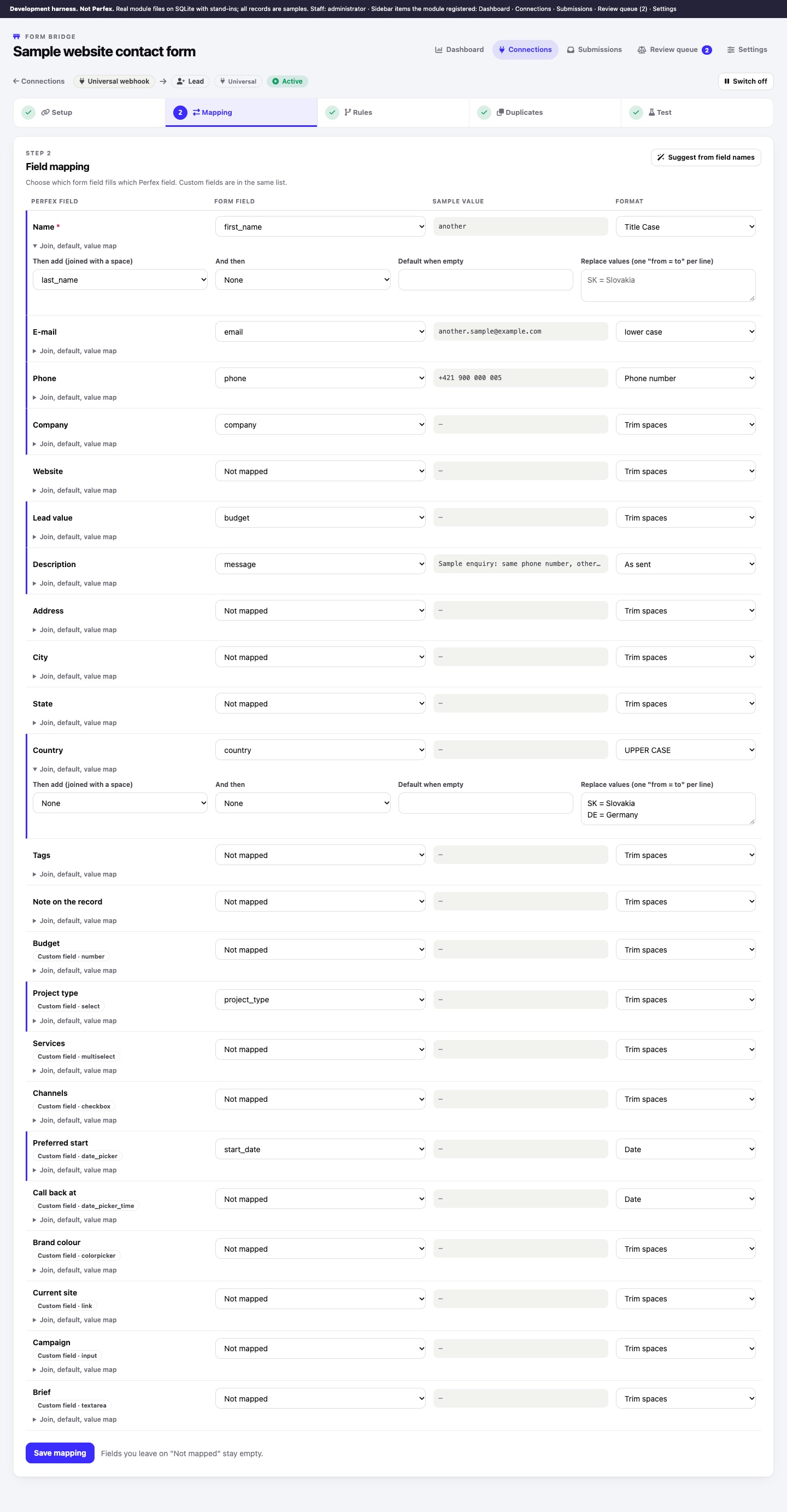
02One mapping row
| Part | What it does |
|---|---|
| Form field | The form field whose value is used. |
| Then add / And then | Up to two more form fields, joined with a space (for example first name + last name). Empty ones are skipped. |
| Format | How the value is cleaned, see the next section. |
| Default when empty | Used when the form sent nothing for this row. |
| Replace values | One from = to per line, for example SK = Slovakia. The comparison ignores upper and lower case. Up to 100 lines. |
03Formats
| Format | Result |
|---|---|
| Trim spaces | Removes spaces at the ends and doubled spaces. |
| lower case | Sample@Example.com → sample@example.com |
| UPPER CASE | sk → SK |
| Title Case | sample PERSON → Sample Person |
| Phone number | Digits with an optional leading +: (0903) 123-456 → 0903123456, 00421 903 … → +421903… |
| Date | Common date forms (2026-12-27, 27.12.2026, 27/12/2026, ISO with time, Unix time) become Y-m-d or Y-m-d H:i:s. A value that is not a date becomes empty. |
| As sent | No change; meant for long text such as a message. |
On top of the format, every value is cleaned for the field it fills: markup and control characters are removed, an invalid e-mail address or website is dropped, and long values are shortened to what Perfex stores. The submission log keeps the original values.
04Perfex fields per target
| Target | Standard fields |
|---|---|
| Lead | Name (required), E-mail, Phone, Company, Website, Lead value, Description, Address, City, State, Country, Tags, Note on the record |
| Customer + contact | Company, Contact first name, Contact last name, Contact e-mail (required), Contact phone, Contact position, VAT number, Phone (the company's), Zip code, City, State, Country, Tags, Note on the record |
| Ticket | Subject (required), Message (required), Name, E-mail (required), Tags |
- Lead name: if Name is empty, Company is used, then E-mail. If all three are empty the submission fails with "The lead has no name".
- Lead status and source come from the connection's Setup step or a rule; if none is chosen, the first one in Perfex's list is used.
- Lead value accepts numbers such as
7 500or7500,50. - Country is matched against Perfex's country list by short name or two-letter code (
Slovakia,SK). Use Replace values for other spellings. - Customer name: Company, else the contact's name, else the contact's e-mail. A contact is only created when it has an e-mail address, because Perfex contacts sign in with their e-mail. The new contact is the primary contact and gets no welcome e-mail and no password.
- Ticket subject: the mapped subject, else "Ticket subject when the form sends none" from Setup, else "Form submission: <connection name>". Ticket message: the mapped message, else every field of the submission listed as "label: value". A ticket needs an e-mail address unless it is attached to an existing contact (see Tickets).
- Tags from the mapping, the connection's default tags and a rule's tags are combined (up to 20).
- Note on the record becomes a note on the lead or customer, together with the context note (UTM, referrer, page address) if that option is on.
Each kind of record has other fields, so switching Creates on the Setup step empties the mapping. Map again afterwards.
05Custom fields
The custom fields you created in Perfex (Setup › Custom Fields) appear in the same list, marked "Custom field" with their type. Which ones appear depends on the target:
- Lead → custom fields of Leads
- Customer + contact → custom fields of Customers and of Contacts
- Ticket → custom fields of Tickets
| Custom field type | What Form Bridge stores |
|---|---|
| Input, Textarea | The text. |
| Number | The number (a comma is read as a decimal point); not a number → empty. |
| Date picker | The date as Y-m-d. |
| Date picker with time | Date and time (00:00:00 when the form sent only a date). |
| Select | The option with the same text (upper and lower case ignored). A value that is not one of the options stays empty; use Replace values to translate. |
| Multi select, Checkbox | Every value separated by , ; or | that matches an option. |
| Color picker | A colour such as #1a2b3c. |
| Link | The address; example.com gets https:// in front. |
A custom field you delete in Perfex is ignored by existing mappings. UTM parameters can go into custom fields too: if your form sends them as fields (for example a hidden utm_source field), map them like any other field.
06Check a mapping with a dry test
On 5 Test, paste a payload and click Run a dry test. The payload goes through the same adapter as a real request. The box is pre-filled with the fields of the latest submission as a flat JSON object, which works for the Universal webhook, the five tools that run through it, Gravity Forms and Framer. For Webflow, Typeform, Tally and Google Forms, paste the tool's complete payload instead (you find it in Submissions › Raw payload). The result shows the target, the matching rule, the assignee, duplicates found and every Perfex value after formatting, and warns when a required field would be empty or the submission would be dropped as spam. A dry test stores nothing and creates nothing.