
● Set up · step 3 of a connection
Routing rules
who gets a submission, and how it is labelled.
Rules are optional. Without rules every submission uses the defaults from the connection's Setup step. With rules you can assign by country, budget or any other answer, take turns among a team, set lead status, source and tags, or turn a submission into a ticket.
01How rules are applied
- Rules are tried from the top. The first active rule whose conditions match decides; later rules are not used for that submission.
- The submission log shows which rule was used (Rule on the submission page).
- Conditions look at the form fields as they arrived (the names on the Mapping step's drop-downs, for example
budgetorcountry), not at the mapped Perfex values. - Comparisons ignore upper and lower case and spaces at the ends.
- A rule without conditions applies to every submission.
- Use the arrows to move a rule up or down, Edit to change it and Delete to remove it. Untick Active to keep a rule without using it.
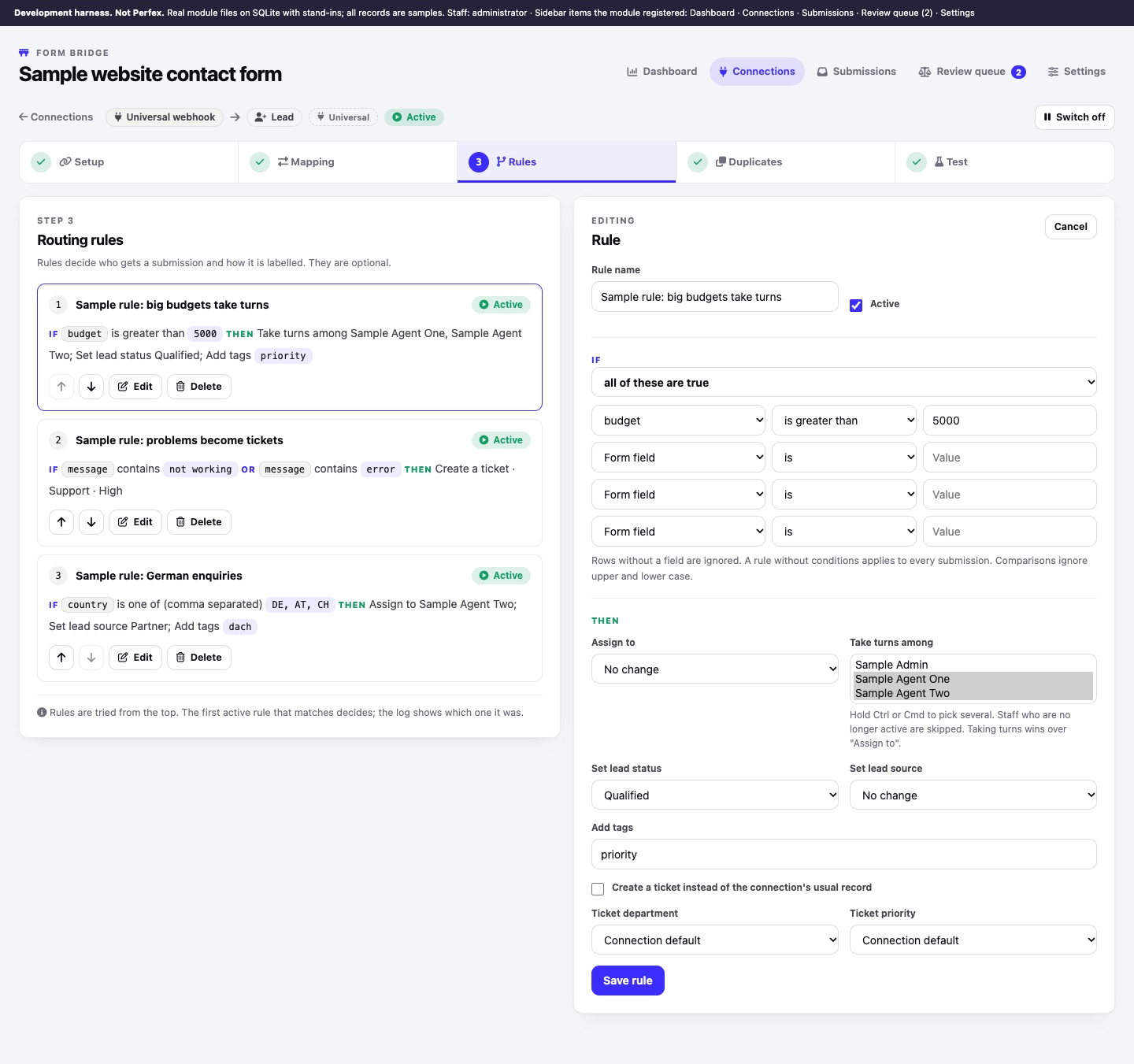
02Create a rule
- Open the connection's Rules stepand click Add rule.
- Rule namefor example "Big budgets to senior sales".
- IFchoose all of these are true or any of these is true, then fill up to six rows: Form field, Comparison, Value. Rows without a field are ignored.
- THENchoose the actions (next section). Leave an action on "No change" to keep the connection's default.
- Click Save ruleand check it with a dry test on the Test step.
03Comparisons
| Comparison | True when the form field … |
|---|---|
| is / is not | equals / does not equal the value |
| contains / does not contain | contains / does not contain the value |
| starts with / ends with | starts / ends with the value |
| is empty / is filled in | has no value / has a value (the Value box is not used) |
| is greater than / is less than | is a number greater / less than the value (a comma is read as a decimal point; text never matches) |
| is one of (comma separated) | equals one of the values, for example DE, AT, CH |
04Actions
| Action | Effect |
|---|---|
| Assign to | The staff member who gets the record. |
| Take turns among | Round-robin: pick several staff members (hold Ctrl or Cmd). Each matching submission goes to the next person in the list. Staff who are no longer active are skipped. Taking turns wins over "Assign to". |
| Set lead status / Set lead source | For leads. |
| Add tags | Added to the connection's default tags. |
| Create a ticket instead of the connection's usual record | The submission becomes a ticket, with the rule's Ticket department and Ticket priority or, on "Connection default", the ones from Setup. Map the ticket fields you need: a ticket needs an e-mail address (see Perfex fields per target). |
The assigned staff member gets a Perfex notification for a new record when Notify the assigned staff member in Perfex is on in Setup (on by default), and also an e-mail when Also send them an e-mail is on and Perfex e-mail is set up.