
● Start · about 5 minutes
Your first connection
in five minutes.
This walkthrough connects one form and turns one test submission into a Perfex lead. It assumes the module is installed and active (see Installation). You need a Perfex administrator account, or a staff role with the Form Bridge Create and Edit permissions.
01Create the connection
- Open Form Bridge › ConnectionsIn the Perfex admin sidebar click Form Bridge, then Connections.
- Fill in "New connection"Name: anything you recognise, for example "Contact form on the website". Form tool: the tool your form runs on, or Universal webhook if it is not in the list. Creates: Lead.
- Click CreateThe connection opens on its Setup step and shows the message "Connection created. Copy its webhook link now."
- Copy the webhook link right awayClick Copy next to the link and keep it somewhere safe. It looks like
https://your-crm.example.com/form_bridge/hook/in/7-…. The secret part is shown only this once; Form Bridge stores just its fingerprint. If you save anything on the page first, or lose the link, click Create a new link (the old one stops working at once).
Treat the link like a password
Anyone who has the link can send submissions into your CRM. Paste it only into your form tool. If it leaks, open the connection and click Create a new link.
02Send one test submission
- Paste the link into your form toolFollow the steps for your tool on Form tools. The connection's Setup step shows the same steps under How to connect.
- Or send a test from a terminalWith the Universal webhook you can send a test with curl. Replace the link with yours:
curl -X POST 'https://your-crm.example.com/form_bridge/hook/in/7-PASTE-THE-REST-OF-YOUR-LINK' \
  -H 'Content-Type: application/json' \
  -d '{"name":"Sample Person","email":"sample.person@example.com","phone":"+421 900 000 000","message":"Sample enquiry"}'
A good answer looks like {"ok":true,"id":1,"status":"received"}. "received" is shown in the admin as Captured: the connection has no mapping yet, so the first submission only teaches Form Bridge which fields your form sends. Nothing is created in Perfex yet.
03Map the fields
- Open the Mapping stepOn the connection, click 2 Mapping. Every Perfex field is listed with a drop-down of the fields your form sent and a sample value.
- Click "Suggest from field names"Form Bridge fills the rows it can recognise by name (name, e-mail, phone, company, message …). Check every row.
- Fix what is missingFor a lead, map at least Name, E-mail or Company; without any of them the lead cannot be created.
- Click Save mapping
Details: Field mapping and custom fields.
04Dry test, then replay
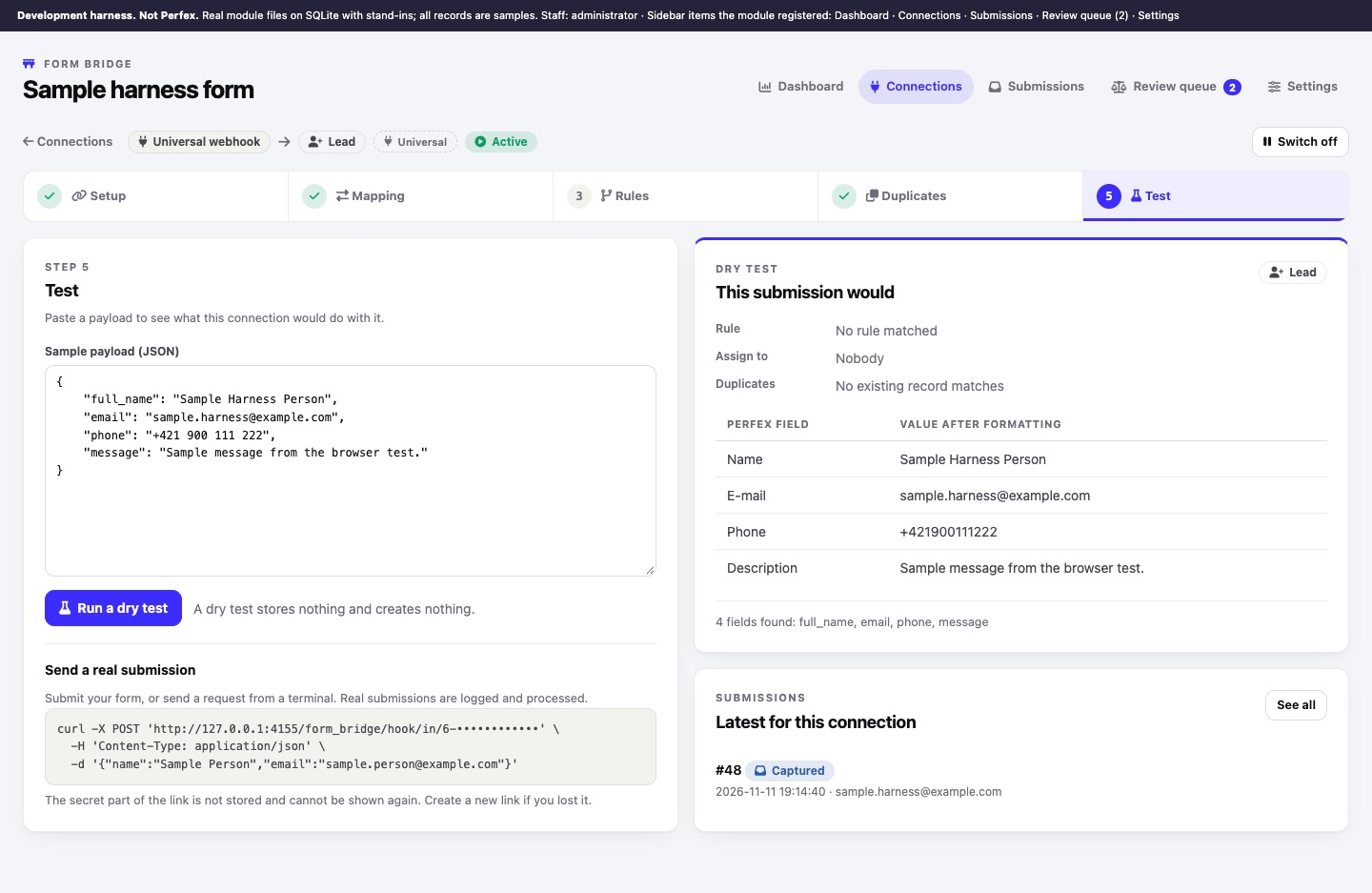
- Open the Test stepClick 5 Test. The sample payload box is pre-filled with the fields of your last submission. Click Run a dry test. The right side shows which rule matched, who would be assigned, whether a duplicate exists and every Perfex value after formatting. A dry test stores nothing and creates nothing.
- Replay the captured submissionOpen Form Bridge › Submissions, click your submission (status Captured) and click Save and replay. The status changes to Created and the page links to the new lead.
- Send the real formFrom now on every submission becomes a lead within seconds.
05Next steps
- Choose the lead status, source, assignee and tags under Setup › Defaults for new records.
- Decide what happens with existing contacts on 4 Duplicates (Duplicates and the review queue).
- Add routing rules on 3 Rules if different submissions should go to different people (Routing rules).
- Check that the Perfex cron runs (the dashboard shows "Cron last ran …"), see Cron.